
More actions
Product Video
Product Picture


Product Description
- 1.8-inch color screen,support 65K color display,display rich colors
- 128X160 resolution, clear display
- Using the SPI serial bus, it only takes a few IOs to illuminate the display
- With SD card slot for convenient function expansion
- Provide underlying libraries and rich sample programs for Arduino, C51, and STM32 platforms
- Military-grade process standards, long-term stable work
- Provide underlying driver technical support
Product Parameters
| Name | Parameter |
| Display Color | 16BIT RGB 65K color |
| SKU | MAR1801 |
| Screen Size | 1.8(inch) |
| Type | TFT |
| Driver IC | ST7735S |
| Resolution | 128*160 (Pixel) |
| Module Interface | 4-wire SPI interface |
| Backlight | 2 White Led |
| Active Area | 28.03x35.04 (mm) |
| Module PCB Size | 38.30x62.48 (mm) |
| Operating Temperature | -10℃~60℃ |
| Storage Temperature | -20℃~70℃ |
| Operating Voltage | 5V/3.3V |
| Power Consumption | About 90mw |
| Product Weight | About 25(g) |
Interface Definition

| Number | Pin Label | Description |
| 1 | VCC | LCD Power positive (3.3V~5V) |
| 2 | GND | LCD Power ground |
| 3 | GND | LCD Power ground |
| 4 | NC | Not defined, reserved |
| 5 | NC | Not defined, reserved |
| 6 | NC | Not defined, reserved |
| 7 | CLK | LCD SPI bus clock signal |
| 8 | SDA | LCD SPI bus write data signal |
| 9 | RS | LCD register / data selection signal,
high level: register, low level: data |
| 10 | RST | LCD reset signal, low level reset |
| 11 | CS | LCD chip select signal, low level enable |
Product Documentation
- 1.8 inch Arduino SPI Module User Manual
- 1.8 inch Arduino SPI Module Size Picture
- 1.8 inch TFT Specifications
- 1.8 inch Arduino SPI Module Schematic
- Driver IC ST7735S Data sheet
Connect to Arduino

|

|
|---|---|
| Arduino UNO direct insertion picture | Arduino Mega2560 direct insertion picture |
How to use on Arduino
- Step 1: Download the test program
- Download the Arduino test program from the Program Download column
- For a description of the relevant test procedures, please refer to the test program documentation in the package
- Step 2: Connect the Arduino development board
- Plug the module directly into the Arduino development board ( Do not plug in?)
- After the module is plugged in, power on the Arduino board
- Step 3: Copy the dependent library
- Make sure the Arduino IDE is installed on your computer (if it is not installed: Arduino IDE download URL)
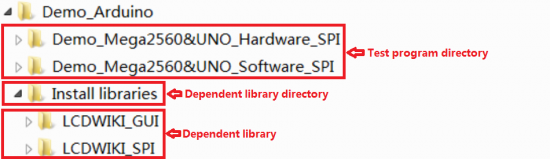
- After installing the Arduino IDE, you need to copy the dependent library to the Arduino project directory as follows:
- (1) Decompress the downloaded test package
- (2) Copy the dependent libraries in the Install libraries directory in the package (shown below) to the libraries folder
- of the Arduino project directory ( Don't know the Arduino project directory?)

- Step 4: Compile and download the program to the development board
- Open the sample in the Example directory of the package to test, compile and download( Don't know how to compile and download?)
- Step 5: Observe the running of the program
- After the program is downloaded, run it directly and observe the running status. If it can be displayed normally, the program runs
- successfully, as shown in the following figure (take the colligate_test test program as an example):


Program Download
Reference Materials
- Arduino IDE software use illustration
- C51 Keil and stc-isp software use illustration
- STM32 keil software use illustration
- PCtoLCD2002 software use illustration
- Image2Lcd software use illustration
- Chinese and English display modulo settings