
More actions
| (9 intermediate revisions by 3 users not shown) | |||
| Line 5: | Line 5: | ||
en=https://www.lcdwiki.com/2.4inch_Arduino_Display | en=https://www.lcdwiki.com/2.4inch_Arduino_Display | ||
}} | }} | ||
== <font color="blue">Product Picture</font> == | == <font color="blue">Product Picture</font> == | ||
| Line 48: | Line 44: | ||
| align="center" |Resolution | | align="center" |Resolution | ||
| align="center" |320*240 (Pixel) | | align="center" |320*240 (Pixel) | ||
|- | |||
| align="center" |Luminance | |||
| align="center" |500Cd/m<sup>2</sup> | |||
|- | |- | ||
| align="center" |Module Interface | | align="center" |Module Interface | ||
| Line 59: | Line 58: | ||
|- | |- | ||
| align="center" |Operating Temperature | | align="center" |Operating Temperature | ||
| align="center" | -20℃~ | | align="center" | -20℃~60℃ | ||
|- | |- | ||
| align="center" |Storage Temperature | | align="center" |Storage Temperature | ||
| align="center" | - | | align="center" | -30℃~70℃ | ||
|- | |- | ||
| align="center" |Operating Voltage | | align="center" |Operating Voltage | ||
| Line 68: | Line 67: | ||
|- | |- | ||
| align="center" |Power Consumption | | align="center" |Power Consumption | ||
| align="center" | | | align="center" |0.67W | ||
|- | |- | ||
| align="center" |Product Weight | | align="center" |Product Weight(Package containing) | ||
| align="center" | | | align="center" |39(g) | ||
|} | |} | ||
| Line 164: | Line 163: | ||
|} | |} | ||
==<font color="blue">Connect to Arduino</font> == | ==<font color="blue">Connect to Arduino</font> == | ||
| Line 184: | Line 177: | ||
==<font color="blue">How to use on Arduino</font> == | ==<font color="blue">How to use on Arduino</font> == | ||
*'''Step 1: Download the test program''' | *'''Step 1: Download the test program''' | ||
| Line 211: | Line 205: | ||
# After the program is downloaded, run it directly and observe the running status. If it can be displayed normally, the program runs | # After the program is downloaded, run it directly and observe the running status. If it can be displayed normally, the program runs | ||
::successfully, as shown in the following figure (take the colligate_test test program as an example): | ::successfully, as shown in the following figure (take the colligate_test test program as an example): | ||
| Line 217: | Line 212: | ||
==<font color="blue">Program Download</font> == | ==<font color="blue">Program Download</font> == | ||
* [https://www.lcdwiki.com/res/Program/Arduino/2.4inch/UNO_8BIT_ILI9341_MAR2406_V1. | * [https://www.lcdwiki.com/res/Program/Arduino/2.4inch/UNO_8BIT_ILI9341_MAR2406_V1.1/2.4inch_Arduino_8BIT_Module_ILI9341_MAR2406_V1.1.zip '''2.4 inch Arduino UNO module package'''] | ||
* [https://www.lcdwiki.com/res/Program/Arduino/2.4inch/UNO_8BIT_ST7789V_MAR2406_V1.0/2.4inch_Arduino_8BIT_Module_ST7789V_MAR2406_V1.0.zip '''2.4寸Arduino UNO(ST7789V) module package'''] | |||
==<font color="blue">Product Documentation</font> == | |||
* [https://www.lcdwiki.com/res/MAR2406/2.4inch_Arduino_8BIT_Module_MAR2406_User_Manual_EN.pdf '''2.4 inch Arduino UNO Module User Manual'''] | |||
* [https://www.lcdwiki.com/images/6/6f/2.4-UNO-size.jpg '''2.4 inch Arduino UNO Module Size Picture'''] | |||
* [https://www.lcdwiki.com/res/MAR2406/QD243701%20specification_v1.1.pdf '''2.4 inch TFT Specifications'''] | |||
* [https://www.lcdwiki.com/res/MAR2406/Altium_2.4_37pin_QD243701_Package_library.zip '''2.4 inch QD243701 TFT LCD Schematic and PCB Package Library'''] | |||
* [https://www.lcdwiki.com/res/MAR2406/ILI9341_Datasheet.pdf '''Driver IC ILI9341 Data sheet'''] | |||
==<font color="blue">Reference Materials</font> == | ==<font color="blue">Reference Materials</font> == | ||
Latest revision as of 10:06, 15 October 2025
Product Picture


Product Description
- Supports development boards such as Arduino UNO and Mega2560 for plug-in use without wiring
- 320X240 resolution, clear display, support for touch function
- Support 16-bit RGB 65K color display, display rich colors
- 8-bit parallel bus, faster than serial SPI refresh
- On-board 5V/3.3V level shifting IC, compatible with 5V/3.3V operating voltage
- Easy to expand the experiment with SD card slot
- Provides an Arduino library with a rich sample program
- Military-grade process standards, long-term stable work
- Provide underlying driver technical support
Product Parameters
| Name | Parameter |
| Display Color | RGB 65K color |
| SKU | MAR2406 |
| Screen Size | 2.4(inch) |
| Type | TFT |
| Driver IC | ILI9341 |
| Resolution | 320*240 (Pixel) |
| Luminance | 500Cd/m2 |
| Module Interface | 8-bit parallel interface |
| Active Area | 48.96*36.72(mm) |
| Module PCB Size | 72.20*52.7(mm) |
| Operating Temperature | -20℃~60℃ |
| Storage Temperature | -30℃~70℃ |
| Operating Voltage | 5V/3.3V |
| Power Consumption | 0.67W |
| Product Weight(Package containing) | 39(g) |
Interface Definition

| Number | Pin Label | Pin Description |
| 1 | LCD_RST | LCD bus reset signal, low level reset |
| 2 | LCD_CS | LCD bus chip select signal, low level enable |
| 3 | LCD_RS | LCD bus command / data selection signal,
low level: command, high level: data |
| 4 | LCD_WR | LCD bus write signal |
| 5 | LCD_RD | LCD bus read signal |
| 6 | GND | Power ground |
| 7 | 5V | 5V power input |
| 8 | 3V3 | 3.3V power input, this pin can be disconnected |
| 9 | LCD_D0 | LCD 8-bit data Bit0 |
| 10 | LCD_D1 | LCD 8-bit data Bit1 |
| 11 | LCD_D2 | LCD 8-bit data Bit2 |
| 12 | LCD_D3 | LCD 8-bit data Bit3 |
| 13 | LCD_D4 | LCD 8-bit data Bit4 |
| 14 | LCD_D5 | LCD 8-bit data Bit5 |
| 15 | LCD_D6 | LCD 8-bit data Bit6 |
| 16 | LCD_D7 | LCD 8-bit data Bit7 |
| 17 | SD_SS | SD card SPI bus chip select signal, low level enable |
| 18 | SD_DI | SD card SPI bus MOSI signal |
| 19 | SD_DO | SD card SPI bus MISO signal |
| 20 | SD_SCK | SD card SPI bus clock signal |
Connect to Arduino

|

|
|---|---|
| Arduino UNO direct insertion picture | Arduino Mega2560 direct insertion picture |
How to use on Arduino
- Step 1: Download the test program
- Download the Arduino test program from the Program Download column
- For a description of the relevant test procedures, please refer to the test program documentation in the package
- Step 2: Connect the Arduino development board
- Plug the module directly into the Arduino development board ( Do not plug in?)
- After the module is plugged in, power on the Arduino board
- Step 3: Copy the dependent library
- Make sure the Arduino IDE is installed on your computer (if it is not installed: Arduino IDE download URL)
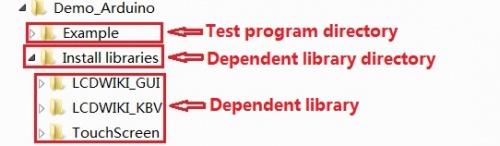
- After installing the Arduino IDE, you need to copy the dependent library to the Arduino project directory as follows:
- (1) Decompress the downloaded test package
- (2) Copy the dependent libraries in the Install libraries directory in the package (shown below) to the libraries folder
- of the Arduino project directory ( Don't know the Arduino project directory?)

- Step 4: Compile and download the program to the development board
- Open the sample in the Example directory of the package to test, compile and download( Don't know how to compile and download?)
- Step 5: Observe the running of the program
- After the program is downloaded, run it directly and observe the running status. If it can be displayed normally, the program runs
- successfully, as shown in the following figure (take the colligate_test test program as an example):


Program Download
Product Documentation
- 2.4 inch Arduino UNO Module User Manual
- 2.4 inch Arduino UNO Module Size Picture
- 2.4 inch TFT Specifications
- 2.4 inch QD243701 TFT LCD Schematic and PCB Package Library
- Driver IC ILI9341 Data sheet

Reference Materials
- Arduino IDE software use illustration
- C51 Keil and stc-isp software use illustration
- STM32 keil software use illustration
- PCtoLCD2002 software use illustration
- Image2Lcd software use illustration
- Chinese and English display modulo settings